GA4 for Nonprofits: The Complete Setup Guide for 2026
Google Analytics 4 (GA4) replaced Universal Analytics in July 2023, and yet a significant number of nonprofits are still running on incomplete or misconfigured GA4 setups. If your organization uses Google Ad Grants, proper GA4 configuration is not optional: it is the foundation for conversion tracking, Smart Bidding, and compliance with the Grant program's reporting requirements. This guide walks through every step of setting up GA4 correctly for a nonprofit, from creating the property to tracking donations, form submissions, and volunteer sign-ups, with no developer required for most of it.
Key Takeaways - GA4 is Google's current analytics platform and replaced Universal Analytics permanently in 2023. If you are still seeing a UA property, it is no longer collecting new data. - GA4 uses an event-based tracking model rather than the session-based model of Universal Analytics. Everything is an event, including page views. - For Google Ad Grant accounts, GA4 must be linked to Google Ads and key events must be imported as conversions for Smart Bidding to function properly. - Most nonprofit conversion tracking (form submissions, donation completions, button clicks) can be set up without code changes using Google Tag Manager. - GA4 is free. Every nonprofit with a website should have it configured correctly.
Why GA4 Matters for Nonprofits Specifically
Most guides to GA4 are written for e-commerce businesses focused on purchase tracking and revenue measurement. Nonprofits have different measurement priorities: donations, volunteer sign-ups, event registrations, newsletter subscriptions, programme enrolments, and petition signatures. GA4 can track all of these, but the setup requires deliberate configuration rather than accepting defaults.
For nonprofits using Google Ad Grants, GA4 configuration is directly tied to account performance and compliance. Google Ad Grant accounts must use conversion-based Smart Bidding (Maximize Conversions or similar), and Smart Bidding requires conversion data to function. Without properly configured GA4 conversions imported into Google Ads, the algorithm has no signal to optimize toward and the account will underperform.
Additionally, Google's support documentation increasingly assumes GA4 as the analytics foundation. If your team is still working from Universal Analytics reports (which stopped collecting data in 2023), your website data is now more than two years out of date.
For nonprofits specifically using their Grant, the connection between GA4 and Google Ads is covered in our guide to linking GA4 to your Google Ad Grant account. This article covers the broader GA4 setup that makes that link meaningful.
Step 1: Create Your GA4 Property
If your organization does not yet have a GA4 property, or if you are unsure whether your existing property is configured correctly, start here.
Check What You Currently Have
- Go to analytics.google.com
- Log in with the Google account associated with your website's analytics
- Look at the property selector in the top left corner
If you see a property with a name like "UA-XXXXXXXX" or "Universal Analytics," that property stopped collecting data in July 2023. You need a GA4 property.
If you see a property with a numeric ID (no "UA-" prefix), you likely have GA4 already. Check when it was created and whether it has recent data in the Reports section.
Create a New GA4 Property
- In Google Analytics, click the gear icon (Admin) in the bottom left
- In the Account column, ensure the correct account is selected
- In the Property column, click Create Property
- Enter your property name (your organization's name works well), select your country and time zone, and choose your currency
- Select "Nonprofit" or "Other" as your industry category
- Choose your business objectives: for most nonprofits, "Generate leads" and "Raise brand awareness" are the most relevant
- Click Create
Google will then prompt you to set up a data stream.
Set Up Your Web Data Stream
A data stream is the connection between your website and your GA4 property. For most nonprofits with a single website, you need one web data stream.
- Choose "Web" as the platform
- Enter your website URL (make sure to select the correct protocol: https://)
- Enter a stream name (your website name is fine)
- Leave Enhanced Measurement enabled. This automatically tracks page views, scrolls, outbound clicks, site search, video engagement, and file downloads without additional configuration.
- Click Create stream
After creating the stream, Google will show you your Measurement ID, which looks like G-XXXXXXXXXX. Save this. You will need it to install the tracking code on your website.

Step 2: Install GA4 on Your Website
With your Measurement ID in hand, the next step is to add the GA4 tracking code to your website. There are two main approaches depending on how your website is built.
Option A: Install via Google Tag Manager (Recommended)
If your website already has Google Tag Manager (GTM) installed, adding GA4 is straightforward and requires no changes to your website code. If you do not have GTM installed, see our Google Tag Manager setup guide for nonprofits before continuing.
To add GA4 via GTM:
- Log in to your GTM account at tagmanager.google.com
- Click New Tag
- Under Tag Configuration, choose Google Tag
- Enter your GA4 Measurement ID (G-XXXXXXXXXX)
- Under Triggering, choose All Pages
- Name the tag "GA4 Configuration" and click Save
- Click Submit and Publish to make the tag live
This single tag sends page view data to GA4 for every page on your website. You will add more tags for specific events (donations, form submissions) in later steps.
Option B: Install via Website Platform Plugin
If you use WordPress, Squarespace, Wix, or another common website platform, there is likely a plugin or built-in integration for GA4.
WordPress: Install the "Site Kit by Google" plugin or "Google Analytics for WordPress by MonsterInsights." Both allow you to connect your GA4 property directly without touching any code.
Squarespace: Go to Settings > Analytics > Google Analytics and enter your Measurement ID.
Wix: Go to Marketing & SEO > Marketing Integrations > Google Analytics and connect your property.
Webflow: Go to Project Settings > Integrations > Google Analytics and enter your Measurement ID.
Drupal: Use the Google Analytics module (drupal.org/project/google_analytics) and enter your Measurement ID in the module settings.
Option C: Install the Code Directly
If you manage your website's HTML directly, paste the GA4 tracking snippet into the <head> section of every page on your site. Google provides this snippet in the data stream setup page. It looks like:
<!-- Google tag (gtag.js) -->
<script async src="https://www.googletagmanager.com/gtag/js?id=G-XXXXXXXXXX"></script>
<script>
  window.dataLayer = window.dataLayer || [];
  function gtag(){dataLayer.push(arguments);}
  gtag('js', new Date());
  gtag('config', 'G-XXXXXXXXXX');
</script>
Replace G-XXXXXXXXXX with your actual Measurement ID.
Verify the Installation
After installing GA4, verify that it is collecting data:
- Open your website in a browser
- In GA4, go to Reports > Realtime
- You should see yourself as an active user within a few seconds
If the Realtime report shows no data after a few minutes, the tracking code is not installed correctly. Check that the Measurement ID matches exactly and that the code is present on the page (use your browser's "View Source" function to confirm).
Step 3: Configure Key Events for Nonprofits
GA4 automatically tracks page views and basic interactions through Enhanced Measurement. But the events that matter most for nonprofits (donations, form submissions, registrations, sign-ups) require additional configuration.
Understanding GA4's Event Model
In GA4, everything is an event. A page view is an event. A donation is an event. A button click is an event. Events have parameters that carry additional information: a donation event might have a "value" parameter (the donation amount) and a "currency" parameter.
Key events (formerly called conversions in GA4) are events you mark as particularly important. GA4 reports on key events separately and Google Ads uses them for conversion tracking and Smart Bidding.
Which Events to Track for Nonprofits
The events worth tracking depend on what actions you want visitors to take on your website. For most nonprofits, the priority list looks like this:
| Event Name | What It Tracks | Priority |
|---|---|---|
| donation_complete | Completed online donation | High |
| form_submit | Any form submission (volunteer, contact, registration) | High |
| volunteer_signup | Completed volunteer application | High |
| event_registration | Event or programme registration | High |
| newsletter_signup | Email newsletter subscription | Medium |
| phone_call | Click on a phone number link | Medium |
| pdf_download | Download of a report, guide, or resource | Low |
| video_play | Engagement with an embedded video | Low |
Setting Up Form Submission Tracking
Form submission tracking is the single most important event for most nonprofits. It covers volunteer applications, contact forms, counseling intake requests, event registrations, and many other conversions.
The simplest approach is to track form submissions via a thank-you page. When someone submits a form and is taken to a confirmation page (e.g., /thank-you or /registration-confirmed), you configure GA4 to treat a visit to that URL as a conversion.
Using GTM to track thank-you page visits:
- In GTM, go to Tags > New
- Choose Google Analytics: GA4 Event as the tag type
- Select your GA4 configuration tag
- Enter an event name: "formsubmit" or something more specific like "volunteersignup"
- Under Triggering, create a new trigger: Page View > Some Page Views > Page URL > contains > /thank-you (or your specific confirmation URL)
- Save and publish
If your forms do not redirect to a thank-you page, you will need a form submission trigger instead. GTM has a built-in Form Submission trigger type that fires when a form is submitted on your page. The configuration is similar but uses the Form Submission trigger instead of a Page View trigger.
Setting Up Donation Tracking
Donation tracking varies significantly depending on which platform you use to accept donations. Our detailed guide to tracking donations from Google Ads covers Classy, GiveWP, Donorbox, PayPal Giving Fund, and other major platforms in detail.
The general principle: if your donation platform redirects to a confirmation page on your own domain after a completed donation, you can track it using the same thank-you page method described above. If the donation is processed on a third-party domain (the donor never returns to your site), you will need to use the donation platform's own analytics integration or cross-domain tracking.
For Google Ad Grant purposes, at minimum you need to know when someone comes from an ad click and completes a donation. This is the conversion that tells Google's Smart Bidding algorithm what a successful outcome looks like.
Step 4: Mark Key Events as Conversions in GA4
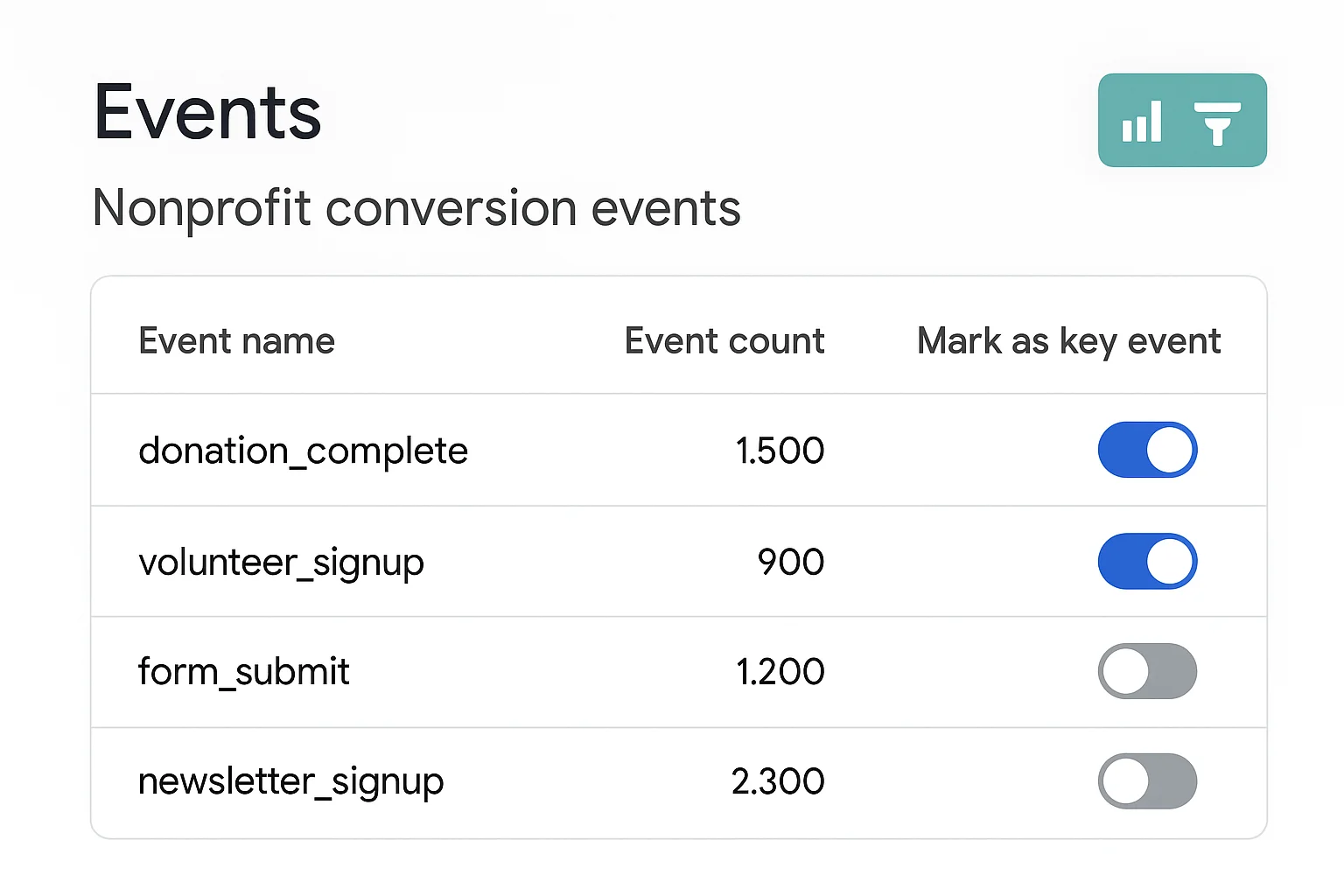
Once your events are being tracked, you need to designate the most important ones as key events in GA4. This tells GA4 to count and report on them separately as conversions.
How to Mark an Event as a Key Event
- In GA4, go to Admin (gear icon in the bottom left)
- Under the Property column, click Events
- Find the event you want to mark as a key event
- Toggle the "Mark as key event" switch to on (it turns blue)
Do this for your highest-priority events: donation completions, volunteer sign-ups, event registrations, and any form submissions that represent meaningful engagement.
What Makes a "Meaningful" Conversion for Google Ad Grants
This distinction matters for compliance. Google Ad Grant accounts must have at least one meaningful conversion per month. Google defines meaningful conversions as actions that represent genuine engagement with your organization's mission: donations, volunteer sign-ups, programme registrations, counseling intake forms, event registrations, and similar.
What Google does not consider meaningful: homepage visits, time-on-site as a primary conversion, or any event that essentially fires for every visitor regardless of their intent.
For full compliance guidance, see our article on what counts as a meaningful conversion for Google Ad Grants.
Step 5: Link GA4 to Google Ads
For nonprofits using Google Ad Grants, linking your GA4 property to your Google Ads account is essential. This link enables two critical functions: importing GA4 conversions into Google Ads for Smart Bidding, and importing Google Ads data into GA4 for attribution reporting.
How to Create the Link
- In GA4, go to Admin > Product Links (in the Property column)
- Click Google Ads Links
- Click Link
- Select your Google Ads account from the list (if it does not appear, make sure you are logged in with an account that has admin access to both properties)
- Enable "Enable Personalized Advertising" if you plan to use audience targeting
- Enable "Import site metrics" to bring Google Ads data into GA4
- Click Submit
The link typically takes 24-48 hours to begin sharing data.
Import GA4 Conversions into Google Ads
After linking, you need to import your GA4 key events as Google Ads conversion actions:
- In Google Ads, go to Tools and Settings > Measurement > Conversions
- Click New conversion action
- Choose "Import"
- Select "Google Analytics 4 properties"
- Select your GA4 property
- Choose the key events you want to import (donationcomplete, volunteersignup, etc.)
- Click Import and continue
Once imported, these conversion actions will appear in your Google Ads conversion list and will be used by Smart Bidding to optimize your campaigns.
For a step-by-step walkthrough specifically focused on the Grant account context, see our complete GA4 setup guide for Google Ad Grant accounts.
Step 6: Configure Audiences for Reporting
GA4's audience feature lets you define segments of your website visitors for analysis and (in paid accounts) remarketing. For nonprofits, audiences are useful even without remarketing because they help you understand who is visiting your site and what they are doing.
Useful Audiences for Nonprofits
Donors: Users who completed a donation_complete event. Understanding this audience (what pages they visited before donating, how long they spent on the site, which channel they came from) helps you optimize your donation funnel.
Volunteers: Users who completed a volunteer_signup event. Similar analysis can reveal which content attracts high-quality volunteer prospects.
Grant traffic: Users who arrived via Google Ads (filter by medium = cpc and source = google). This allows you to analyze the behavior of Grant-driven traffic separately from organic or direct traffic.
High-engagement users: Users who visited 3+ pages or spent more than 2 minutes on the site. These are your most engaged visitors, and understanding what they read can inform your content strategy.
To create an audience:
- In GA4, go to Admin > Audiences
- Click New audience
- Use the audience builder to define your conditions
- Name the audience and click Save
Step 7: Set Up Custom Reports for Nonprofit Metrics
GA4's default reports are designed for a general audience. Nonprofits benefit from custom reports that surface the metrics that matter most for mission measurement.
Reports Worth Creating
Donation funnel report: Shows how many users visited your donation page, how many started the donation process, and how many completed it. The drop-off between each step reveals where to focus optimization efforts.
Grant performance report: Shows traffic from your Google Ad Grant campaigns alongside conversion data. Useful for board reporting and for demonstrating the value of the Grant.
Content performance report: Shows which pages drive the most meaningful conversions (not just the most page views). A page that receives 500 visits and generates 50 volunteer sign-ups is more valuable than one with 2,000 visits and no conversions.
To create custom reports in GA4:
- Go to Reports > Library (scroll to the bottom of the left sidebar)
- Click Create new report
- Choose "Create detail report" for a table-style report
- Add dimensions (page title, source/medium, event name) and metrics (event count, key events, users) relevant to your goal
- Save the report
For a guided tutorial on building a full nonprofit reporting dashboard using your GA4 data, see our Looker Studio dashboard guide for Google Ad Grants.
Common GA4 Setup Mistakes Nonprofits Make
Even organizations that have technically installed GA4 often have configuration errors that undermine its usefulness.
Mistake 1: Not Marking Any Events as Key Events
GA4 tracks many events automatically through Enhanced Measurement, but none of them are designated as key events by default. If you have not manually marked your donation completions and form submissions as key events, GA4 is collecting the data but not highlighting it as important, and Google Ads cannot import it for Smart Bidding.
Mistake 2: Counting Bounces as Conversions
Some nonprofits configure GA4 to count every page view or every session as a conversion, reasoning that any visit is valuable. For Google Ad Grant compliance purposes, this is a problem. Google flags accounts where click volume and conversion volume are nearly identical because it indicates that the conversion tracking is not meaningful. Only genuine actions (donations, sign-ups, form submissions) should be primary conversions.
For a full troubleshooting guide when your conversion tracking is not behaving as expected, see our guide to fixing broken Google Ad Grant conversion tracking.
Mistake 3: Having Multiple Conflicting Tracking Codes
A common issue for nonprofits that have had their websites managed by multiple people over the years is duplicate or conflicting tracking codes. This results in inflated session counts, unusual bounce rates, and unreliable conversion data.
To check for duplicate tracking:
- Open your website in a browser
- Right-click and choose "View Page Source"
- Search (Ctrl+F or Cmd+F) for "gtag" or "G-"
- Count how many times a GA4 Measurement ID appears
If the same Measurement ID appears more than once, or if multiple different IDs appear, you have conflicting tracking code that needs to be cleaned up.
Mistake 4: Not Verifying Data in Realtime After Setup
Many nonprofits install GA4 (or assume it was installed by a previous agency) and never verify that it is actually working. The Realtime report is the fastest way to confirm: if you can see yourself as an active user within a few seconds of visiting the site, the basic setup is working.
Mistake 5: Using the Wrong Date Ranges in Reports
GA4 reports default to the last 28 days. For nonprofits with seasonal programs (holiday food drives, summer camps, year-end giving), this default can be misleading. Always check that your report date range reflects the period you are trying to analyze, and compare to the same period in the previous year rather than the previous period when seasonality is a factor.
Verify Your GA4 Setup with GrantMax
If your organization uses Google Ad Grants, GrantMax checks whether your conversion tracking is properly configured and whether the conversions being tracked meet Google's compliance requirements. A misconfigured GA4 setup is one of the most common reasons Grant accounts underperform or face compliance issues.
Run a free audit at grantmax.org to see whether your conversion tracking is set up in a way that supports both compliance and Smart Bidding performance.
Frequently Asked Questions
Does my nonprofit need to pay for GA4?
No. GA4 (Google Analytics 4) is completely free. There is a paid version called Google Analytics 360 designed for large enterprises, but the standard GA4 product has no cost and no meaningful limitations for nonprofits. Every organization with a website should have it installed.
We had Universal Analytics set up. Do we need to redo everything in GA4?
Yes, in most cases. Universal Analytics stopped collecting new data in July 2023. While your historical UA data may still be accessible in the old interface for a limited period, it is no longer being updated. GA4 has a different tracking model, different event names, and different report structure. You need to set up GA4 from scratch, including reconfiguring any conversion events you were tracking in UA.
Can I import my Universal Analytics historical data into GA4?
Google does not provide a direct import tool for UA data into GA4. Some third-party tools (like Supermetrics or GA4 BigQuery exports) can help you migrate historical data, but this is a technical project that typically requires specialist help. For most nonprofits, the practical approach is to accept the break in data continuity and focus on building good GA4 data going forward.
What is the difference between an "event" and a "key event" in GA4?
Every interaction tracked by GA4 is an event: page views, scrolls, clicks, form submissions, and anything else you configure. A key event is an event you have designated as particularly important to your organization. GA4 reports key events separately and Google Ads uses them for conversion tracking. Not all events are key events; only the ones you have explicitly marked as such.
How long does it take for GA4 to show data after setup?
The Realtime report shows data within seconds of installation. Standard reports (Acquisition, Engagement, Monetization) typically show data within 24-48 hours. Some reports, particularly those involving attribution and user journey analysis, can take 48-72 hours to populate fully. If you see no data after 48 hours, something in your installation needs to be checked.
Key Takeaways
- GA4 is the current Google Analytics platform. Universal Analytics stopped collecting data in July 2023 and any organization still relying on it is working from outdated information.
- Setup involves four main steps: creating a GA4 property, installing the tracking code on your website, configuring key events for the actions that matter to your mission, and linking GA4 to Google Ads.
- For Google Ad Grant accounts, the GA4 to Google Ads link is essential. Without it, Smart Bidding has no conversion data to optimize toward and your campaigns will underperform.
- Most nonprofit conversion tracking (form submissions, thank-you page visits, button clicks) can be configured without developer help using Google Tag Manager.
- Mark only meaningful actions as key events: donations, volunteer sign-ups, event registrations, and similar. Do not mark page views or general site visits as primary conversions.
- Verify your installation using the Realtime report immediately after setup. Do not assume GA4 is working without confirming it.
- Common mistakes include not marking any events as key events, having duplicate tracking codes from previous setups, and treating every page view as a conversion.
Published: April 2026 | Last updated: April 2026 | Category: Conversion Tracking, Analytics | Tags: GA4, Analytics, Technical, Setup