UTM Parameters for Nonprofits: How to Track Every Marketing Channel Properly
If your nonprofit is running Google Ad Grants, sending email newsletters, posting on social media, and asking partners to share your links, how do you know which of those channels is actually driving donations, volunteer sign-ups, and programme registrations? The answer is UTM parameters: small pieces of text you add to URLs that tell Google Analytics exactly where each visitor came from and which campaign sent them. Without UTM parameters, your analytics data groups much of this traffic together under vague labels like "direct" or "referral," making it impossible to measure what is working. This guide explains exactly what UTM parameters are, how to create them for every channel a nonprofit uses, how to keep them consistent, and how to read the resulting data in GA4.
Key Takeaways - UTM parameters are tags added to the end of URLs that tell Google Analytics where a visitor came from, what channel sent them, and which campaign drove the visit. - Google Ad Grants traffic is automatically tagged if auto-tagging is enabled, but all other channels (email, social, partner links, offline campaigns) need manual UTM tagging. - Consistent naming conventions are essential. "Email" and "email" and "EMAIL" are recorded as three separate sources in GA4. - Google's Campaign URL Builder generates UTM-tagged URLs for free at no.goo.gl/url-builder or via the GA4 admin interface. - UTM data in GA4 allows you to calculate cost per acquisition for every channel and make data-driven decisions about where to invest time and budget.
What UTM Parameters Are and Why Nonprofits Need Them
A UTM parameter is a piece of text appended to a URL after a question mark. It is invisible to the person clicking the link but is read by Google Analytics when they arrive on your website. GA4 uses this information to attribute the visit to the correct channel, source, and campaign.
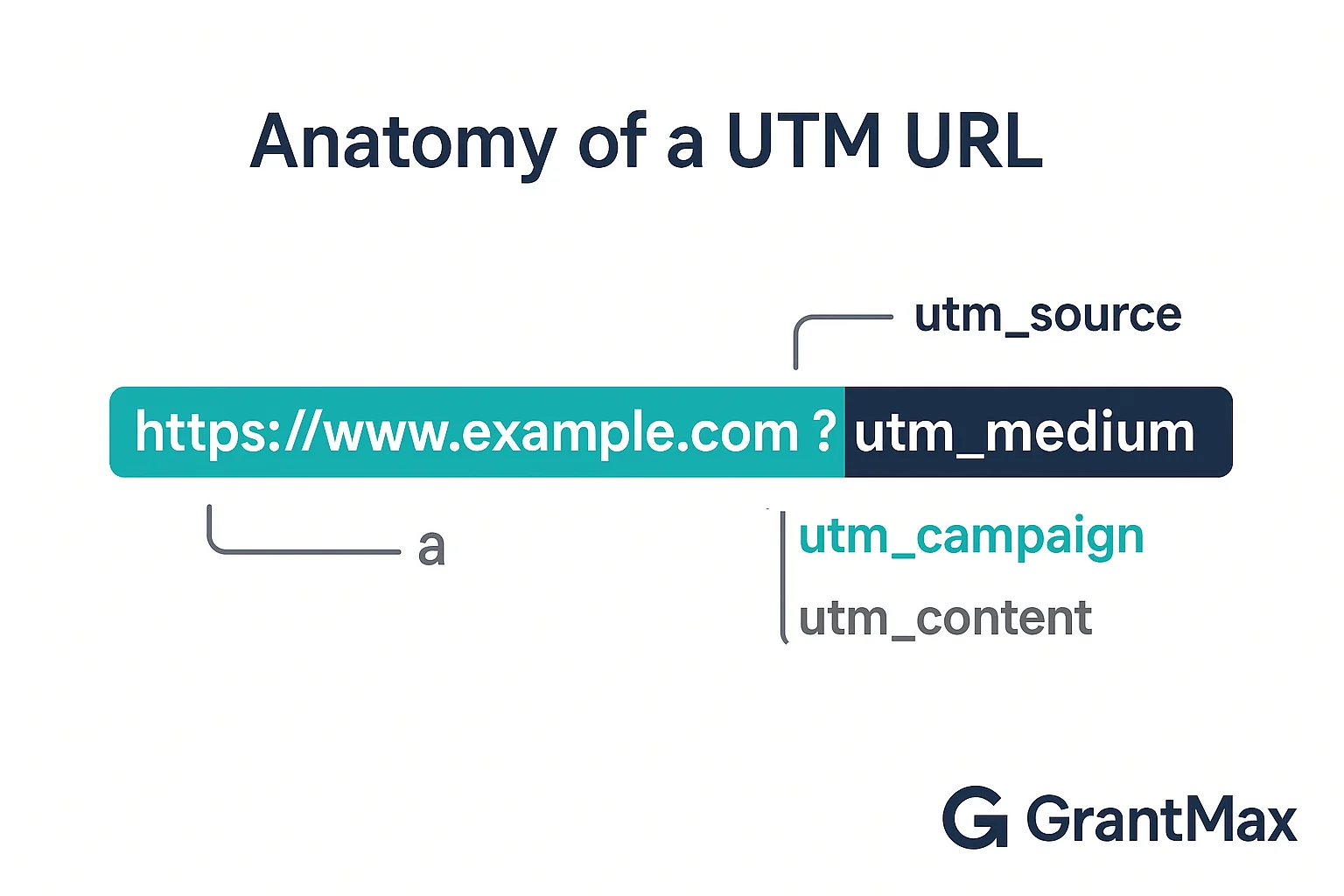
A standard UTM-tagged URL looks like this:
https://www.yournonprofit.org/volunteer?utm_source=facebook&utm_medium=social&utm_campaign=volunteer_drive_2026The part before the question mark is your normal URL. Everything after it is the UTM data. In this example:
- utm_source=facebook tells GA4 the visit came from Facebook
- utm_medium=social tells GA4 the channel type was social media
- utmcampaign=volunteerdrive_2026 tells GA4 which specific campaign sent the visitor
When someone clicks this link, GA4 captures those values and stores them with the session. You can then filter your reports to see exactly how many people came from this Facebook campaign, how long they stayed, and whether they signed up to volunteer.
Why This Matters for Nonprofits
Nonprofits typically have multiple active marketing channels operating simultaneously: Google Ad Grants, email newsletters, social media posts, partner organization links, event registration platforms, direct mail with QR codes, and more. Without UTM parameters on every channel, GA4 cannot reliably distinguish between them.
The consequences of not tracking properly include:
- Being unable to answer "which channel drives the most donations?"
- Over-attributing success to direct traffic (which catches many improperly tagged links)
- Making budget and time decisions based on incomplete data
- Being unable to demonstrate the impact of specific campaigns to funders or board members
Google Ad Grants traffic is automatically tagged by Google if auto-tagging is enabled in your Google Ads account (it is on by default). But every other channel requires manual UTM tagging to be correctly identified in GA4.
The Five UTM Parameters Explained
There are five UTM parameters. Three are required for GA4 to function correctly; two are optional but recommended.
Required Parameters
utm_source: Identifies where the traffic originates. This is typically a website name, platform, or publication. Examples: google, facebook, instagram, linkedin, mailchimp, eventbrite, yourpartnerorg.
utm_medium: Identifies the marketing channel type. This groups similar sources together. Examples: email, social, cpc (cost per click), organic, referral, qr, banner.
utmcampaign: Identifies the specific campaign. This is where you name the initiative that generated the traffic. Examples: givingtuesday2026, volunteerdrivespring, annualappealemail, awareness_week.
Optional but Recommended Parameters
utmcontent: Distinguishes between multiple links within the same campaign. Used when you have two or more links in the same email (one in the header, one in the body), or two different ad versions running simultaneously. Examples: headerlink, ctabutton, bannertop, text_link.
utmterm: Originally designed to capture paid search keywords, this parameter is now used by some organizations for additional campaign details. For most nonprofits, utmcontent is more useful.
How They Appear in GA4
In GA4, UTM parameters appear in the Acquisition reports under Session source/medium and Session campaign. You can filter any report by these dimensions to see data for a specific channel or campaign.
Go to Reports > Acquisition > Traffic Acquisition to see your traffic broken down by source/medium combination. Each row represents a unique source and medium pair, and you can add the Campaign dimension to drill down further.
Step 1: Define Your Naming Conventions
Before creating any UTM-tagged URLs, establish a naming convention and write it down. Inconsistent naming is the most common and most damaging UTM mistake. GA4 treats utmsource=Facebook and utmsource=facebook as two different sources, so if different team members use different capitalizations, you end up with fragmented data.
Recommended Conventions for Nonprofits
Always use lowercase. No exceptions. utmsource=Facebook becomes utmsource=facebook. utmmedium=Email becomes utmmedium=email.
Use underscores instead of spaces. Spaces in URLs get converted to "%20" which looks messy and can cause tracking errors. "volunteer drive" becomes "volunteer_drive."
Be consistent with source names. Decide once what to call each platform and stick to it. If Facebook is "facebook," it is always "facebook." Not "fb," not "Facebook," not "meta."
Be specific with campaign names. Include the month or quarter and year in campaign names so reports remain readable over time. "annualappeal" becomes ambiguous after a few years; "annualappeal2026q4" is always clear.
Keep a naming convention document. A simple shared spreadsheet listing approved values for utmsource, utmmedium, and common campaign patterns prevents drift over time, especially as staff changes.
Standard Medium Values for Nonprofits
| Channel | Recommended utm_medium |
|---|---|
| Google Ad Grants (auto-tagged) | cpc (set automatically) |
| Email newsletter | |
| Social media (organic posts) | social |
| Social media (paid ads) | paid_social |
| Partner website links | referral |
| QR codes on print materials | qr |
| Events and conferences | event |
| Direct mail | direct_mail |
| SMS / text messaging | sms |
| Podcast / audio | podcast |
Step 2: Create UTM-Tagged URLs
Using Google's Campaign URL Builder
Google provides a free URL builder at ga-dev-tools.google/campaign-url-builder that generates UTM-tagged URLs from a form interface, with no manual typing of the URL string required.
- Enter your destination URL (the page you want to send people to)
- Fill in the utm_source field (where is this link going to be posted?)
- Fill in the utm_medium field (what type of channel is this?)
- Fill in the utm_campaign field (what campaign is this part of?)
- Optionally fill in utm_content
- Click Copy to copy the generated URL
The builder handles the formatting (question marks, ampersands, encoding) automatically.
Using a Spreadsheet as a URL Builder
For nonprofits that create many UTM-tagged URLs regularly, a spreadsheet with a formula is faster and more consistent than using the web tool each time.
Create a spreadsheet with columns for: Base URL, utmsource, utmmedium, utmcampaign, utmcontent, and Generated URL. In the Generated URL column, use a formula to concatenate the values:
=A2&"?utm_source="&B2&"&utm_medium="&C2&"&utm_campaign="&D2&IF(E2<>"","&utm_content="&E2,"")This formula combines your base URL with the parameters automatically. Keep this spreadsheet as a central reference so your team can see all active UTM-tagged URLs in one place.
Using Bitly or Another Link Shortener
Long UTM-tagged URLs can look unwieldy in social media posts or emails. Link shorteners like Bitly allow you to create a short URL (e.g., bit.ly/GrantMax2026) that redirects to your UTM-tagged long URL.
The UTM parameters are preserved through the redirect, so GA4 still captures the full tracking data. The short URL is what you share publicly; the long tagged URL is the destination.
Step 3: Apply UTM Parameters to Every Channel
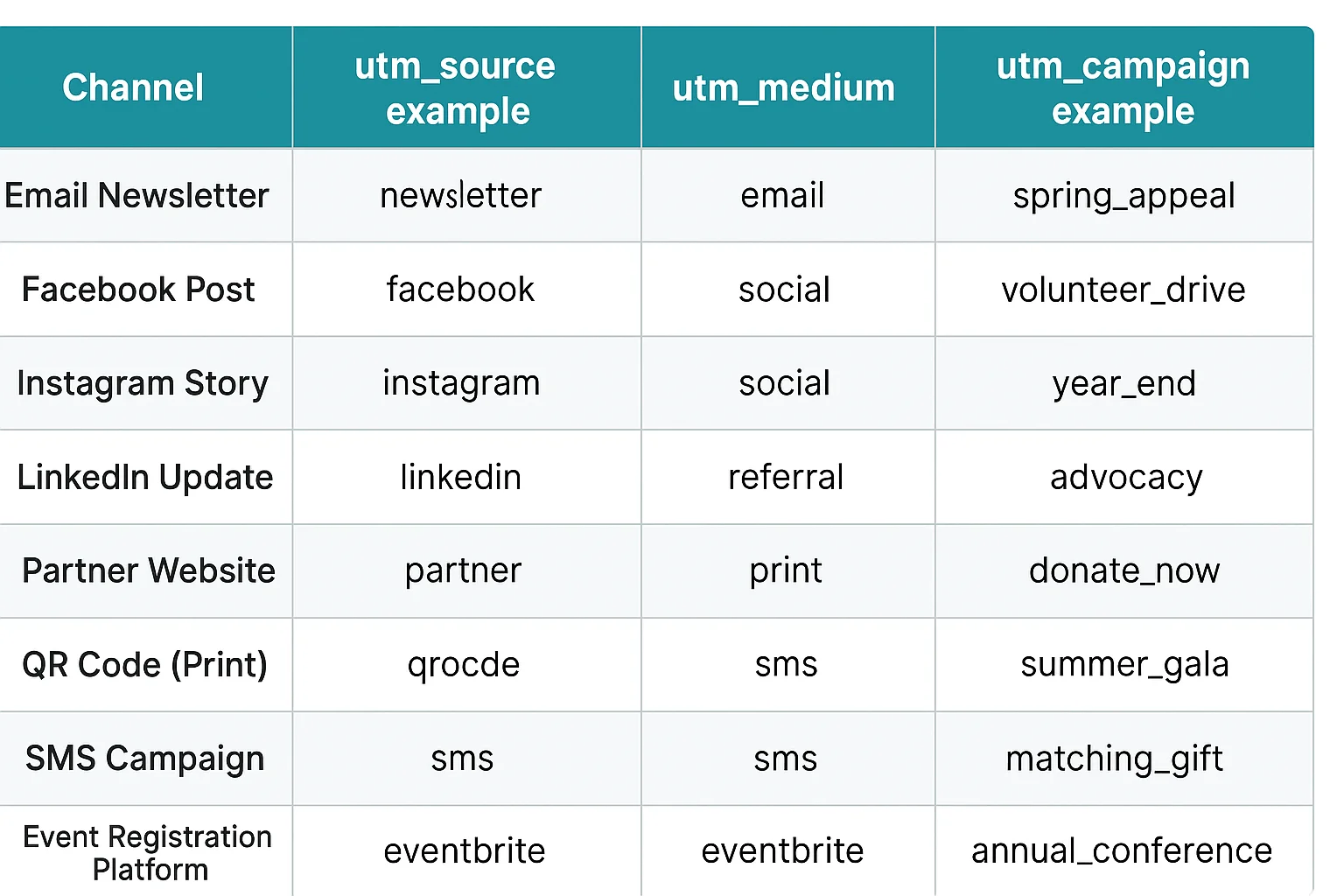
Email Campaigns
Every link in every email your nonprofit sends should have UTM parameters. This includes your newsletter, appeal emails, event invitations, welcome sequences, and transactional emails.
Standard email UTM setup:
- utmsource: the name of your email platform (mailchimp, constantcontact, klaviyo, hubspot) or "newsletter" if you prefer a generic source
- utm_medium: email
- utmcampaign: the specific email send (givingtuesday2026, aprilnewsletter, volunteerwelcome_series)
- utmcontent: the specific link location if you have multiple links in one email (headercta, bodylink1, footer_donate)
Using utmcontent in emails is particularly valuable because it shows you which links within an email actually get clicked. If you send an email with a donate button in the header and another in the body, utmcontent tells you which one performs better.
Social Media Posts
For organic social media posts (posts you publish without paying to boost or advertise them):
- utm_source: the platform name (facebook, instagram, linkedin, twitter, tiktok)
- utm_medium: social
- utm_campaign: the content theme or campaign name
For paid social ads:
- utm_source: the platform name
- utmmedium: paidsocial
- utm_campaign: the campaign name (matching how you named it in the platform's ad manager)
Note: Most social media platforms provide their own analytics for posts and ads. UTM parameters are valuable because they bring this data into GA4 alongside your other channel data, allowing cross-channel comparison.
Partner and Affiliate Links
When partner organizations link to your website (through a charity listing, a resource page, a co-branded campaign), ask them to use a UTM-tagged URL so you can track the referral traffic they send.
- utmsource: the partner's name (redcrossau, localcouncilsydney, cause_directory)
- utm_medium: referral
- utmcampaign: the partnership name or "partnerlinks"
If you cannot control what URL a partner uses, check your GA4 Referral report to see traffic from their domain appearing under the automatic referral source.
Print Materials and QR Codes
QR codes on printed materials (brochures, posters, event programs, direct mail) should point to UTM-tagged URLs.
- utmsource: a descriptor of the physical material (galaprogram2026, streetpostermarch, directmail_spring)
- utm_medium: qr
- utm_campaign: the campaign name
This is the only way to connect offline marketing activity to online behavior in GA4. Without UTM-tagged QR codes, GA4 records people who scan them as "direct" traffic, losing all attribution.
SMS and Text Messaging
If you send text messages to supporters:
- utm_source: the SMS platform name (twilio, simpletexting, or "sms" generically)
- utm_medium: sms
- utm_campaign: the message campaign name
Step 4: Set Up a UTM Tracking Spreadsheet
A shared tracking spreadsheet is essential for organizations with multiple people creating links. It serves as both a URL builder and a historical record of every UTM-tagged URL your team has ever created.
Recommended Columns
| Column | Purpose |
|---|---|
| Date created | When was this link made? |
| Created by | Who made it? |
| Destination page | The base URL |
| utm_source | Source value used |
| utm_medium | Medium value used |
| utm_campaign | Campaign value used |
| utm_content | Content value (if used) |
| Generated URL | The full tagged URL |
| Short URL | The Bitly or shortened version |
| Channel | Where is this link being used? |
| Notes | Any additional context |
Keep this spreadsheet in a shared location (Google Drive, Notion, or similar) where every team member can access and add to it. When someone needs a UTM-tagged URL for a new email or social post, they check the spreadsheet first to see if a consistent URL already exists for that campaign.
Step 5: Read UTM Data in GA4
With UTM parameters in place, your GA4 reports begin to show a clear picture of which channels are driving meaningful outcomes.
The Traffic Acquisition Report
Go to Reports > Acquisition > Traffic Acquisition. This report shows sessions grouped by Session source/medium. You will see rows like:
- google / cpc (your Google Ad Grant traffic, auto-tagged)
- facebook / social (organic Facebook posts you tagged)
- mailchimp / email (email campaigns you tagged)
- yourpartner.org / referral (a partner link that included utm parameters)
Add the Session campaign secondary dimension to break each source/medium down by individual campaign.
Adding Conversion Data
The Traffic Acquisition report becomes most useful when you add conversion data alongside traffic data. Click the pencil icon to customize the report, then add "Key events" or specific key event columns to the table. Now you can see not just how many sessions each channel drove, but how many conversions each channel produced.
This is where you calculate cost per acquisition by channel. For your Google Ad Grant, the "cost" is the staff time to manage it. For email, it is the email platform subscription. For social media, it is the time spent creating posts. Knowing that 10 hours of email management per month produces 40 donations, while 10 hours of social media management produces 5, gives you concrete data for allocating resources.
Building a Campaign Report
To see all campaigns regardless of source or medium, go to Reports > Acquisition > Traffic Acquisition, then change the primary dimension from "Session source/medium" to "Session campaign." This groups all traffic by campaign name, letting you see the total impact of a campaign like "givingtuesday_2026" across all the channels that promoted it.
For a guide to building a full nonprofit reporting dashboard that brings together this data visually, see our Looker Studio dashboard guide.
Common UTM Mistakes Nonprofits Make
Mistake 1: Inconsistent Capitalization
As mentioned, GA4 is case-sensitive for UTM values. Enforce lowercase across all parameters, without exception.
Mistake 2: Not Tagging Internal Links
UTM parameters are for external links that bring people to your website from outside. Never add UTM parameters to links between pages on your own website. If you add utm_source=footer to a link from your homepage to your donation page, GA4 will treat every visitor who clicks it as a new session from that "source," fragmenting your session data and breaking attribution.
Mistake 3: Tagging the Homepage Instead of a Specific Landing Page
When you add UTM parameters to a link, the destination URL should be as specific as possible. Linking to your homepage with UTM parameters means you cannot tell which programme, appeal, or piece of content the visitor was interested in. Link to the specific page that is relevant to the message you sent.
Mistake 4: Using UTM Parameters on Links You Do Not Control
If a journalist writes about your nonprofit and you email them a UTM-tagged link, be aware that the UTM parameters will appear in the published article URL. This is usually harmless, but some organizations prefer to give journalists a clean URL and add UTM tracking only to links they distribute themselves.
Mistake 5: Not Auditing UTM Data Regularly
UTM parameters only provide value if someone reviews the data. Set a monthly reminder to check your Traffic Acquisition report, review which campaigns performed well, and update your campaign tracking spreadsheet. Over time, this data builds a picture of your organization's most effective channels that is invaluable for planning.
UTM Parameters and Your Google Ad Grant
For Google Ad Grant accounts, UTM parameters are handled automatically through Google's auto-tagging feature. When auto-tagging is enabled (the default), Google adds a gclid parameter to every ad click, which GA4 and Google Ads use to attribute the session correctly.
You do not need to manually add UTM parameters to your Grant ads. However, there are a few things to be aware of:
Do not add UTM parameters to Grant ad destination URLs. Adding manual UTM parameters to Grant ad URLs can conflict with auto-tagging and create double-counting or attribution errors in GA4.
Do use UTM parameters on everything else so that your Grant traffic can be compared fairly against other channels. If email, social, and partner traffic are not tagged, they fall into "direct" in GA4, making the Grant appear to be driving more proportional impact than it actually is (or vice versa).
Check that auto-tagging is enabled in your Google Ads account: go to Google Ads > Admin > Account Settings > Auto-tagging and confirm the toggle is on.
For more on how Google Ad Grant data appears in analytics and how to use it to inform your broader strategy, see our guide to using search term data across your marketing strategy.
Verify Your Tracking Setup with GrantMax
If your nonprofit uses Google Ad Grants, GrantMax checks whether your conversion tracking is properly configured and whether the data flowing between GA4 and Google Ads is accurate. Misconfigured tracking is one of the most common reasons Grant accounts underperform or face compliance issues.
A five-minute audit at grantmax.org shows you exactly where your tracking setup has gaps and what to fix first.
Frequently Asked Questions
Do I need UTM parameters if I already have Google Analytics installed?
Google Analytics automatically captures some source information (it can tell when traffic comes from Google organic search, or from a specific domain that linked to you). But for channels like email, social media, SMS, and print materials, GA4 cannot determine the source without UTM parameters. Without them, this traffic is grouped under "direct" (no referrer detected) or attributed to the wrong source.
Will UTM parameters affect my SEO?
No. UTM parameters are not visible to search engines as ranking signals. Google Search Console and Google's search algorithm ignore UTM parameters when indexing and ranking your pages. They affect analytics tracking only, not search ranking.
Can I use UTM parameters with link shorteners like Bitly?
Yes. Create your full UTM-tagged URL first, then shorten it with Bitly or a similar service. The redirect preserves the UTM parameters, so GA4 still captures the full tracking data when someone clicks the shortened link.
What if someone shares my UTM-tagged link with others?
This is a known limitation of UTM tracking. If someone receives your UTM-tagged email link and then shares it on social media, everyone who clicks that social post will be attributed to the original email campaign. This is generally a minor issue for nonprofits. For high-profile campaigns where this might significantly skew data, you can use server-side tracking or redirect management tools that strip UTM parameters after the first click.
How do I track offline donations that were influenced by online content?
UTM parameters track online clicks. For offline donations (checks, cash at events, phone donations) that may have been influenced by online content, you need a different approach: asking donors how they heard about the campaign (on donation forms or over the phone), using unique phone numbers or offer codes for different channels, and tracking event attendance alongside donation data. This is an attribution challenge that UTM parameters alone cannot solve, though they can still capture the portion of the journey that did go through your website.
Key Takeaways
- UTM parameters are tags added to URLs that tell GA4 exactly where each visitor came from, what channel sent them, and which campaign they were part of. They are the foundation of multi-channel attribution for nonprofits.
- Three parameters are required (utmsource, utmmedium, utmcampaign) and two are optional (utmcontent, utmterm). For nonprofit email campaigns, utmcontent is highly recommended to distinguish between multiple links in a single email.
- Consistent naming conventions are essential. All values should be lowercase, use underscores instead of spaces, and follow a documented standard that your whole team uses.
- Google Ad Grant traffic is tagged automatically through auto-tagging. Do not add manual UTM parameters to Grant ad destination URLs.
- Apply UTM parameters to every external channel: email, social media posts, partner links, QR codes on print materials, and SMS campaigns.
- Keep a shared tracking spreadsheet that records every UTM-tagged URL your team creates, including who made it, when, and where it was used.
- Avoid adding UTM parameters to internal links between your own website pages. This breaks session attribution in GA4.
- Review your Traffic Acquisition report in GA4 monthly to see which channels and campaigns are driving conversions, and use this data to make resourcing decisions.
Published: April 2026 | Last updated: April 2026 | Category: Conversion Tracking, Analytics | Tags: UTM, Analytics, Tracking, Technical