Google Search Console for Nonprofits: How to Use Free SEO Data to Grow Your Mission
Every nonprofit with a website is leaving free, actionable data on the table if they are not using Google Search Console. While most organizations focus on paid advertising or social media, Google Search Console gives you a direct window into how your website performs in Google Search: what people search for before finding you, which pages rank and which do not, and exactly what is technically wrong with your site that may be preventing pages from appearing at all. This guide covers everything a nonprofit needs to know to set up Google Search Console, understand its core reports, and turn the data into actions that grow organic traffic without spending a dollar.
Key Takeaways - Google Search Console is free and provides data that no other tool can: the exact search queries people used before clicking on your website. - Setting up takes less than 30 minutes and requires no technical background. - The Performance report shows your keyword opportunities, and the Coverage report shows technical issues that may be blocking pages from Google. - Search Console data directly informs your Google Ad Grant keyword strategy, content calendar, and landing page priorities. - Google Search Console and Google Analytics 4 serve different purposes and work best when used together.
What Google Search Console Is (and What It Is Not)
Google Search Console (GSC) is a free tool from Google that shows you how your website performs in Google Search. It gives you data on:
- Which search queries bring people to your website
- Which pages appear in search results and how often they get clicked
- How your pages are indexed by Google and whether any are blocked or have errors
- Which other websites link to yours
- Whether your site has any technical issues affecting its search performance
What Google Search Console is not: it is not a traffic analytics tool. For understanding what visitors do on your website after they arrive, you need Google Analytics 4. GSC tells you about the journey before the click; GA4 tells you about the journey after it.
The two tools are complementary and can be linked so that GSC data appears inside GA4 reports.
For nonprofits specifically, Google Search Console is valuable because:
- It reveals which program names, services, and cause areas people are already searching for
- It identifies pages that could rank higher with targeted improvements
- It flags technical issues on your website that may be limiting your visibility in Google
- It provides keyword data that directly informs your Google Ad Grant keyword strategy and helps you avoid duplicating effort between paid and organic search
Step 1: Set Up Google Search Console
Create or Access Your Account
Go to search.google.com/search-console and sign in with a Google account. If your organization's website has never been added to Search Console, you will be prompted to add a property.
If Search Console was previously set up by another staff member or an agency, ask them to add you as a full user, or check your organization's Google account for existing access.
Add Your Website as a Property
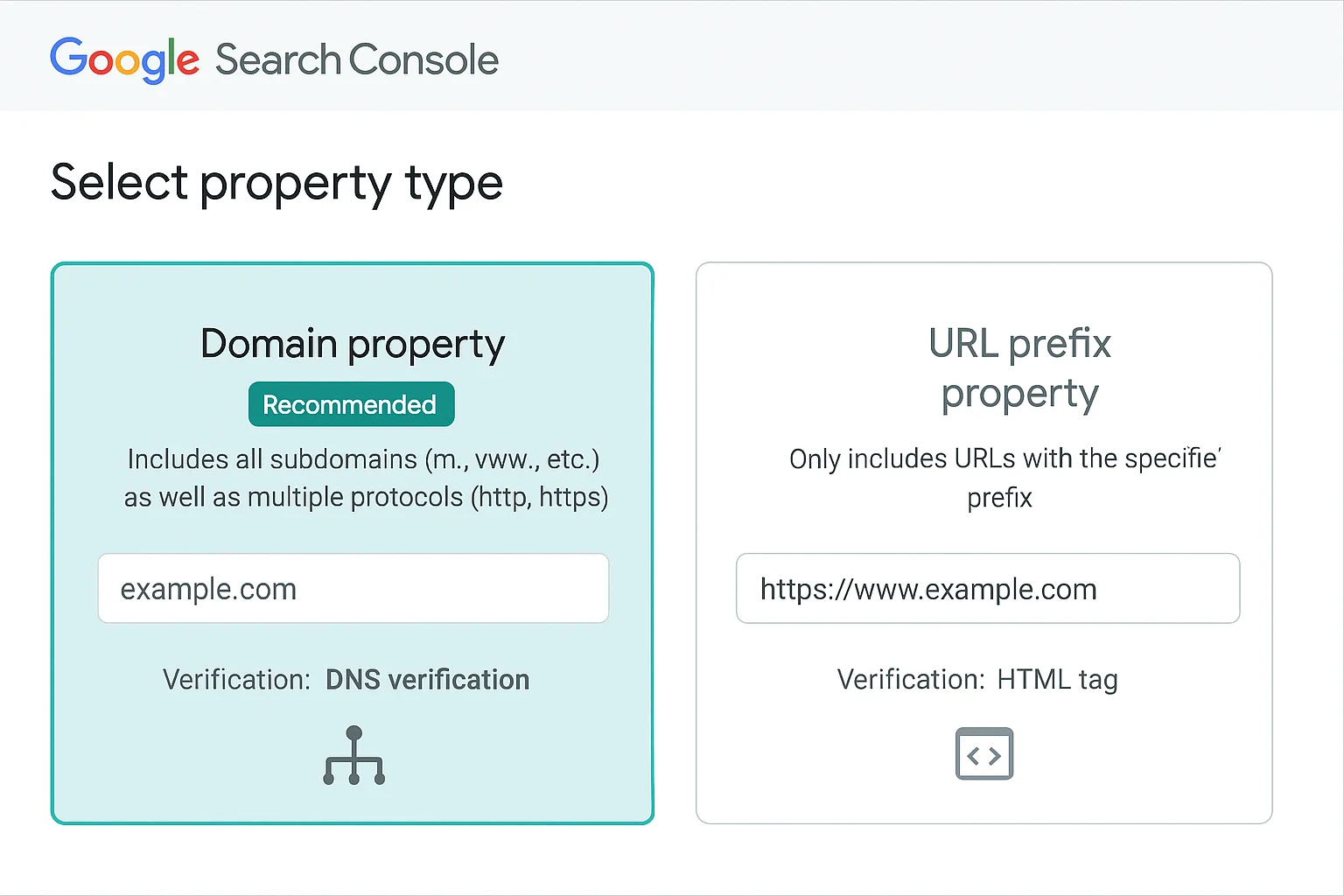
Search Console offers two property types:
Domain property (recommended): Covers your entire domain including all subdomains (www, blog, help, etc.) and both http and https versions. This gives you the most complete picture of your website's search performance. You verify this property by adding a DNS record, which typically requires access to your domain registrar (where you purchased your domain name).
URL prefix property: Covers only a specific URL prefix (e.g., https://www.yournonprofit.org/). Easier to verify but may miss data from subdomains or non-https versions of your pages. Good option if you do not have access to your domain registrar.
For most nonprofits, a URL prefix property covering your main website URL is the practical starting point.
Verify Ownership
Google needs to confirm that you actually own the website before it shows you data. There are several verification methods:
HTML file upload (easiest for most): Google provides a small HTML file that you upload to your website's root directory. If you have access to your website's file manager or FTP, this is the most straightforward method.
HTML meta tag: Google provides a single line of HTML that you add to the <head> section of your homepage. If you manage your website through WordPress or similar platforms, you can usually add this via a plugin like Yoast SEO or Rank Math, or directly in the theme settings.
Google Analytics: If GA4 is already installed on your website with the same Google account, you can verify Search Console ownership in one click. This is the fastest method if GA4 is already running.
Google Tag Manager: Similar to GA4, if GTM is installed and you have admin access, you can verify via GTM.
After verification, Google begins processing your website's data. It typically takes 24-48 hours before the first reports populate, and up to a few weeks before you have enough historical data to identify meaningful patterns.
Step 2: Understand the Performance Report
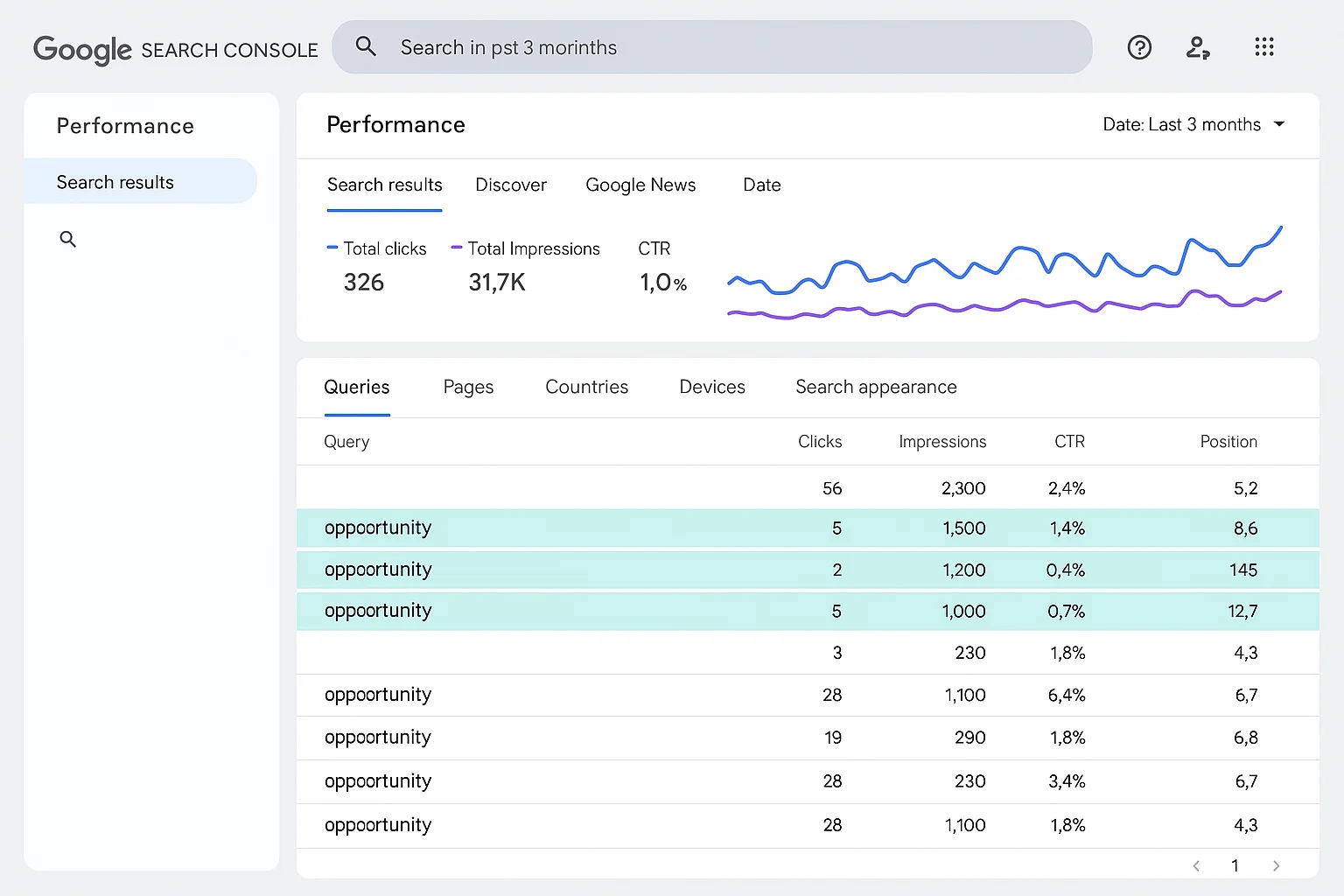
The Performance report is the most valuable section of Google Search Console for most nonprofits. It shows exactly which search queries are bringing people to your website, how often your pages appear in search results, and how many clicks each query generates.
Key Metrics in the Performance Report
Total clicks: The number of times someone clicked through to your website from a Google Search result. This is your organic search traffic from Google.
Total impressions: The number of times a page from your website appeared in Google Search results, regardless of whether someone clicked on it. High impressions with low clicks means your page is ranking but the title and description are not compelling people to click.
Average CTR (click-through rate): Clicks divided by impressions, expressed as a percentage. A higher CTR means more people choose to click your result when they see it.
Average position: Your average ranking position across all queries. Position 1 means you appear first; position 10 means you appear at the bottom of the first page. Positions 11+ mean you are on the second page or beyond.
How to Read the Queries Tab
The Queries tab shows the search terms people used before clicking your website. This is data you cannot get anywhere else. To access it:
- Open Search Console and click on your property
- Click Performance in the left sidebar
- Ensure you are on the Search Results tab
- Click the Queries tab in the data table below the graph
By default, the table is sorted by total clicks. You can sort by any column: impressions, CTR, or position.
What to Look For
High impressions, low CTR (opportunity to improve title and description): If a query generates thousands of impressions but very few clicks, your page is ranking but the title tag and meta description are not compelling enough. Rewriting these elements to more directly address what the searcher is looking for can significantly increase clicks without any change to the page content itself.
High position, low impressions (niche but reliable traffic): Queries where you rank in positions 1-5 but receive few impressions are simply low-volume searches. These are reliable traffic sources even if they are small.
Positions 8-20 (the improvement opportunity zone): Queries where you rank between positions 8 and 20 are on the cusp of meaningful organic traffic. A small improvement in content quality or page authority could move these into the top 5, which typically delivers 5-10 times more clicks. These are your highest-ROI content improvement targets.
Branded vs. non-branded queries: Branded queries (searches that include your organization's name) tell you about people who already know you exist. Non-branded queries (searches for services, causes, or topics you cover) tell you about people discovering you for the first time. For most nonprofits, growing non-branded traffic is the higher-value goal.
Filtering by Page
Click the Pages tab instead of Queries to see performance by individual page. This shows you which pages are driving the most organic traffic and which are underperforming despite being indexed.
Compare this data with your GA4 reports to see which high-traffic pages are actually converting visitors into donors, volunteers, or programme participants.
Step 3: Use Search Console Data to Improve Your Google Ad Grant
One of the most underutilized aspects of Google Search Console for nonprofits using Google Ad Grants is the intelligence it provides for your paid search strategy.
Identify Organic Rankings to Protect with Grant Ads
If your website already ranks organically in positions 1-3 for a keyword, you generally do not need to spend Grant budget on that exact keyword. Your organic listing will get most of the available clicks. Grant budget is better spent on keywords where you rank poorly organically (positions 8+) or do not rank at all.
Use the Queries tab filtered to show only queries where your average position is 8 or higher. These are your Grant opportunities: terms people are searching for, where you have some relevance (enough to rank at all), but where your page needs a boost that paid visibility can provide while your organic ranking improves.
Find Keyword Ideas for Your Grant Account
The Queries report often surfaces keyword variations you had not considered. Real searches from real people frequently use different language than your organization uses internally. A food bank might discover through Search Console that people search "free grocery pickup near me" rather than "food pantry access," or that "where to get free baby formula" generates meaningful traffic to a blog post about infant nutrition support.
These exact-match insights are invaluable for your Google Ad Grant keyword list, because they reflect how your potential beneficiaries actually describe their needs.
Understand What Pages Drive Organic Traffic vs Grant Traffic
By comparing Search Console data (organic traffic) with your Google Ads data (Grant traffic), you can see which pages are doing double duty (appearing in both organic and paid results) and which are exclusively supported by Grant ads. Pages that only receive traffic through Grant ads are at risk if your Grant account faces issues. Investing in organic SEO for those pages reduces your dependence on paid visibility.
For a deeper look at how organic search and Google Ad Grants work together as complementary channels, see our Google Ad Grants vs nonprofit SEO guide.
Step 4: Understand the Coverage Report
The Coverage report (called Index in newer versions of Search Console) tells you how Google has indexed your website pages. Indexed pages can appear in search results; non-indexed pages cannot.
The Four Coverage Statuses
Valid: Pages that are indexed and eligible to appear in Google Search. This is what you want for all important pages.
Valid with warnings: Pages that are indexed but have issues worth reviewing. Common warnings include pages marked as canonical but not self-referencing, or pages with unusual indexing signals.
Error: Pages that Google tried to index but could not. Common errors include: 404 Not Found (the page does not exist), Server errors (your website was unavailable when Google tried to access it), and Redirect errors (the page redirects in a way Google cannot follow).
Excluded: Pages that Google has not indexed, either because you told it not to (via a noindex tag or robots.txt rule) or because Google decided on its own not to index them. Exclusion reasons include: "Duplicate without user-selected canonical" (Google found a very similar page elsewhere and chose that one as the primary), "Crawled but not indexed" (Google visited the page but decided it was not substantial enough to index), and "Discovered but not crawled" (Google knows the page exists but has not visited it yet).
What to Do With Coverage Report Data
Review error pages immediately: Any page returning a 404 error that was previously indexed is losing traffic. Either restore the page, create a redirect to a relevant existing page, or ensure Google no longer crawls the old URL.
Investigate "Crawled but not indexed" pages: This status often indicates thin content (not enough substantial information for Google to consider the page worth indexing) or near-duplicate content (the page is too similar to another page on your site). For nonprofits, common causes include program pages with very little description, staff bio pages with minimal content, and event pages that remain live after the event has passed.
Check excluded pages for important content: If a page you consider important is excluded from the index, click on it in the Coverage report to see why. Sometimes important pages are accidentally excluded by a noindex tag added during website development or a mistake in the robots.txt file.
Step 5: Use the URL Inspection Tool
The URL Inspection tool lets you check the indexing status of any specific page on your website. It is the fastest way to diagnose why a particular page is not appearing in Google Search.
To use it:
- Click on "URL inspection" in the left sidebar of Search Console
- Paste the full URL of the page you want to check into the search bar at the top
- Press Enter
Search Console shows you:
- Whether the URL is indexed
- When Google last crawled it
- Any issues detected during the last crawl
- How the page looks to Google's crawler (the rendered HTML)
If a page is not indexed and you want it to be, click "Request indexing" after fixing any issues. This asks Google to recrawl the page and consider it for indexing. It does not guarantee indexing, but it speeds up the process.
Step 6: Monitor Core Web Vitals
Core Web Vitals are a set of page experience signals that Google uses as a ranking factor. They measure loading speed, interactivity, and visual stability. Search Console provides a report specifically for Core Web Vitals that identifies which pages on your website are performing poorly.
The three Core Web Vitals metrics are:
Largest Contentful Paint (LCP): How long it takes for the main content of a page to load. Anything over 2.5 seconds is considered poor.
Interaction to Next Paint (INP): How quickly the page responds to user interactions like clicks and taps. Anything over 200 milliseconds is considered poor.
Cumulative Layout Shift (CLS): How much the page layout shifts unexpectedly while loading. A score above 0.1 is considered poor (this is what causes buttons or text to jump around while the page loads).
For most nonprofits, Core Web Vitals issues are concentrated in a few categories: large uncompressed images, slow-loading fonts, third-party scripts (donation widgets, social sharing buttons, live chat plugins) that block page rendering, and old theme files that have not been updated.
The Core Web Vitals report in Search Console shows which pages are failing these tests and groups them by issue type. Share this report with your web developer or hosting provider as a priority fix list.
Step 7: Check Your Links
Search Console provides two useful link reports:
External links (backlinks): Which other websites link to your pages. Backlinks from reputable websites are a significant factor in Google's ranking algorithm. A nonprofit with many high-quality backlinks (from local government websites, established charities, news organizations, academic institutions) will generally outrank one with few backlinks, all else being equal.
The External links report shows your top linked pages and the websites linking to them. This is useful for understanding your current link profile and identifying opportunities to earn more links through partnerships, press coverage, and resource listings.
Internal links: How your own pages link to each other. Good internal linking helps Google understand the structure and hierarchy of your website, and passes authority from high-traffic pages to lower-visibility pages.
For nonprofits, a common internal linking gap is the homepage receiving many links but individual programme pages receiving very few. If your most important conversion pages (donation page, volunteer sign-up, programme registration) are not well-linked from other pages on your site, Google may not recognize them as important.
Step 8: Link Search Console to GA4
Linking Google Search Console to Google Analytics 4 allows you to view Search Console data inside your GA4 reports, combining pre-click search data with post-click behavior data.
To link them:
- In GA4, go to Admin > Product Links
- Click Search Console Links
- Click Link
- Choose your Search Console property from the list
- Select your GA4 web data stream
- Click Next and then Submit
After linking, a new report called "Search Console" appears in GA4 under Reports > Acquisition > Search Console. This report shows organic search queries alongside engagement metrics like average session duration and key event completions, letting you see not just which keywords drive traffic but which keywords drive actions.
This data is particularly useful for content planning: if certain queries consistently lead to conversions while others drive high bounce rates, you know where to invest your content improvement effort.
For a guide to the full nonprofit analytics stack including GA4, Search Console, and Google Ads, see our GA4 for nonprofits complete setup guide.
How to Use Search Console Data for Your Content Strategy
Search Console's Queries report is one of the most underutilized inputs to nonprofit content planning. Every query in the report represents a real question or need that someone expressed to Google. If your website is appearing for that query, you have some relevance to that topic.
Find Content Gaps
Queries where your site appears but ranks in positions 11-50 represent topics where you have partial relevance but have not yet published a page that fully addresses the searcher's need. These are your best content investment opportunities: you are already in the conversation, but a more comprehensive piece would move you into meaningful ranking positions.
Identify Underperforming Pages
If a query generates many impressions but a very low CTR, the page ranking for it has a weak title tag or meta description. Rewrite the title to more directly address the query intent and ensure the meta description promises a specific benefit or answer. These changes alone can double or triple clicks without any change to the page content.
Inform Your Nonprofit Digital Marketing Strategy
The patterns in your Search Console data reveal how people think about the problems your organization addresses. This language should inform your social media posts, your email subject lines, your fundraising copy, and your programme naming. When you use the same words your audience uses, everything from ad performance to email open rates improves.
For a guide to building a content strategy that uses this kind of data systematically, see our nonprofit content marketing strategy guide.
Frequently Asked Questions
Is Google Search Console free?
Yes, completely free with no paid tier for the features relevant to nonprofits. All the features described in this guide are available at no cost. The only requirement is a Google account and ownership of the website you want to track.
How is Google Search Console different from Google Analytics?
Search Console shows you data about the search results page: which queries led someone to click on your website, where your pages rank, and whether Google can access and index your pages. Google Analytics shows you what happens after someone arrives on your website: which pages they visit, how long they stay, and which actions they take. Both tools are necessary for a complete picture of your website's performance.
How long does it take to see data in Search Console?
Initial data typically appears within 24-48 hours of verification. However, the Performance report only shows data from after your property was verified, and the most useful analysis requires at least 3 months of data to identify trends. If you are setting up Search Console for the first time, some reports may show limited data for the first few weeks.
Can I use Search Console for a nonprofit website that is not in English?
Yes. Search Console works for websites in any language and provides data on queries in whatever language your visitors use. The interface itself is available in many languages as well.
Our website was redesigned recently and traffic dropped. Can Search Console help?
Yes, this is one of the most useful applications of Search Console. A traffic drop after a redesign typically means one of: pages were moved without proper redirects (causing 404 errors for pages Google had indexed), important pages were accidentally given a noindex tag during development, URL structures changed without redirects, or page speed deteriorated significantly. The Coverage report and URL Inspection tool will identify the specific cause.
Key Takeaways
- Google Search Console is a free tool that shows you how your website performs in Google Search, including which queries bring people to your site, how your pages rank, and whether Google can index your pages properly.
- The Performance report's Queries tab provides data available nowhere else: the exact search terms real people used before visiting your website. This directly informs your keyword strategy for both organic content and Google Ad Grant campaigns.
- Pages ranking in positions 8-20 are your highest-ROI improvement targets. A small improvement in content quality or page authority can move these into positions where they receive significant organic traffic.
- The Coverage report identifies pages that are not indexed, which means they cannot appear in Google Search at all. Errors and excluded pages should be reviewed and addressed regularly.
- Core Web Vitals (page speed and stability) are a Google ranking factor. The Core Web Vitals report in Search Console identifies which pages are failing these tests.
- Linking Search Console to GA4 combines pre-click search data with post-click behavior data, showing you not just which keywords drive traffic but which keywords drive conversions.
- Search Console data should feed directly into your content planning, your Google Ad Grant keyword list, and your page optimization priorities.
Published: April 2026 | Last updated: April 2026 | Category: Tools and Integrations | Tags: SEO, Tools, Analytics, Organic